Everything you need to get started with AutoPilot
IBKR Trader Workstation (TWS) connects to your brokerage account and lets AutoPilot communicate with it to send trade commands. You can also use TWS as a standalone trading platform.
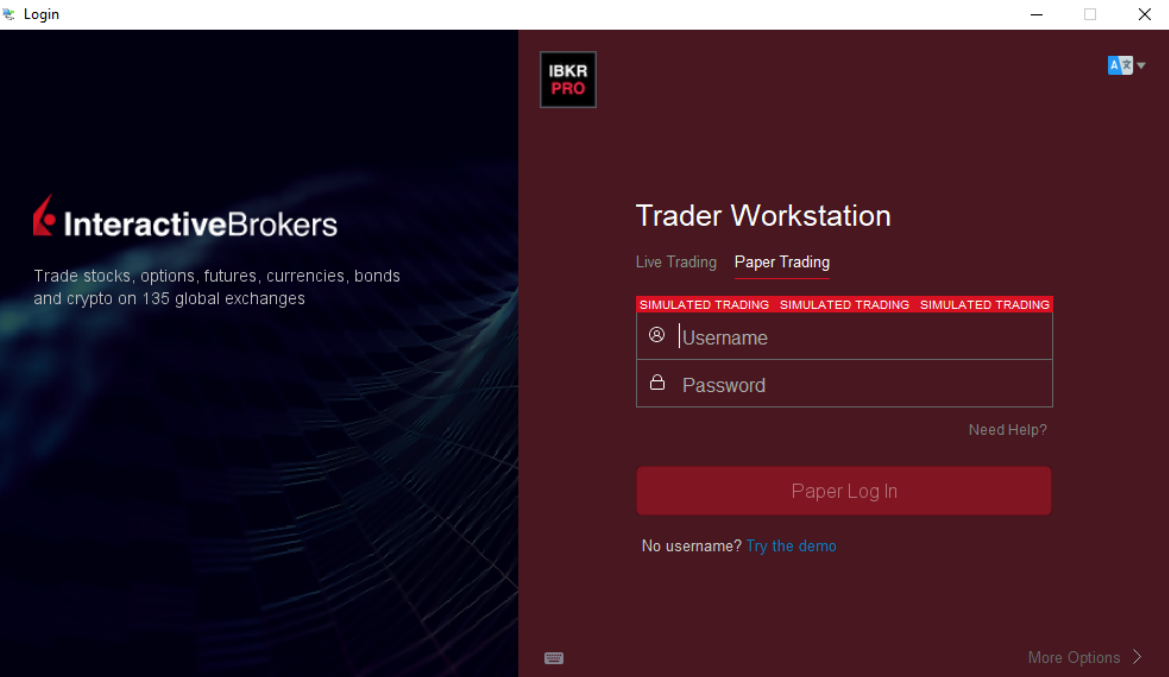
TWS login window — select Paper Trading and enter your credentials
Once logged in, open the Configure menu from the top-right corner, then navigate to the API settings:
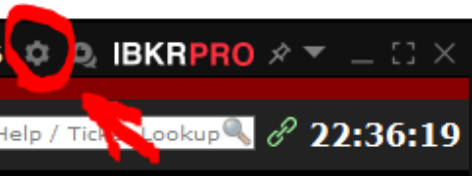
Click the gear icon in the top-right corner to open Configure
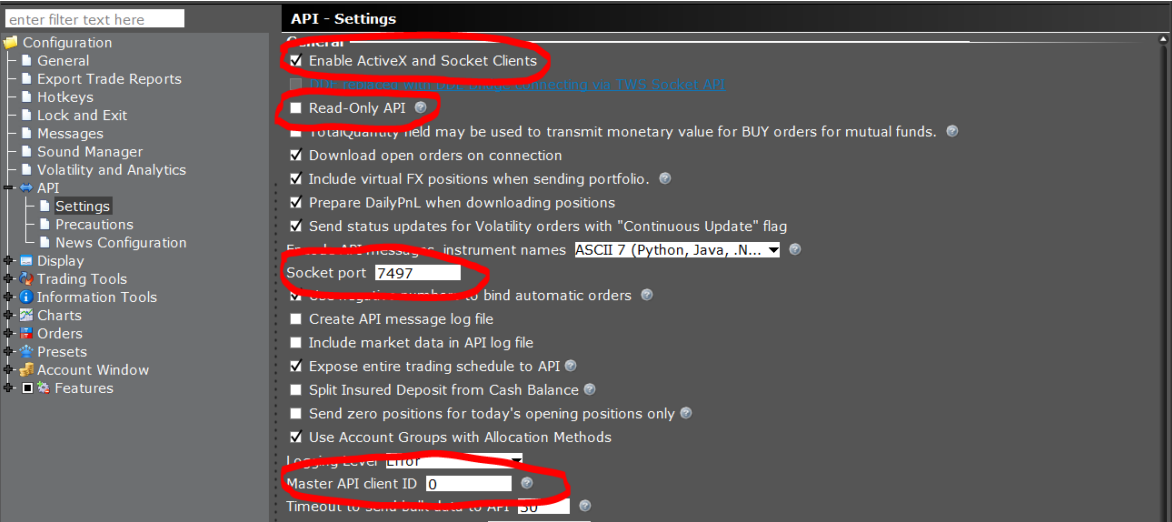
API Settings — Enable ActiveX, untick Read-Only, set port 7497 and client ID 0
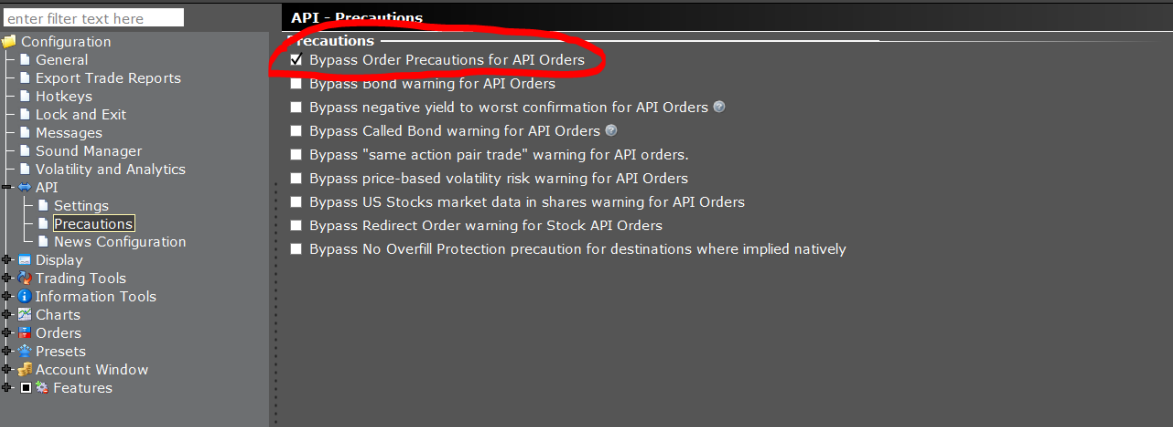
API Precautions — check Bypass Order Precautions for API Orders
To use AutoPilot you need an authorization code. You will have two codes total — one for your Paper account and one for your Live account. Each code only needs to be entered once.
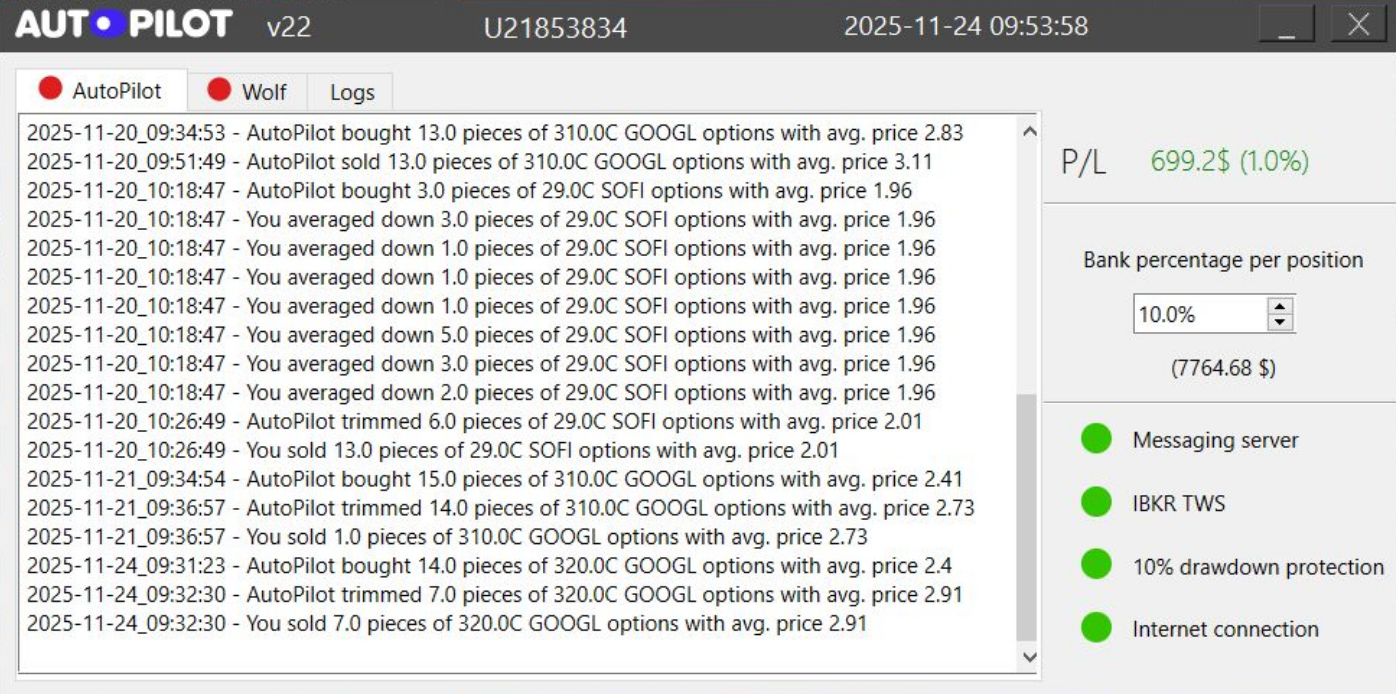
AutoPilot main window — trader tabs, logs, P/L and connection status
In the top-right of the AutoPilot window you can set how much of your portfolio goes into each position called by a trader.
For example: if you have $10,000 and set the percentage to 10%, when a trader calls a buy on 410C, AutoPilot will purchase those call options for no more than $1,000.
We currently only trade with half stake — this means if you set 10%, we trade 5% of the portfolio each trade. We recommend setting it at 10%.
You have 4 indicators in the bottom-right corner for Messaging Server and IBKR TWS connection status. If they are all green, you are all good to go.
We recommend to run AutoPilot on your computer via cable connected to your modem. Even when WiFi is not stable for a minute it can cause you missing trades.
Do not open IBKR on the website or phone during trading operations — that cuts the connection to your computer, IBKR & AutoPilot.
You receive two software codes: one for AutoPilot paper account activation and one for live account activation. You only need to enter each code once — after that, you won't need to enter them again.
IBKR offers a paper trading account that you can use for as long as you like. It helps you learn how everything works and configure AutoPilot for daily use before committing real funds.
Turn on your AutoPilot before the market opens (9:30 AM EST) and turn it off after the market closes (4:00 PM EST).
Make sure your WiFi connection is reliable — or use a wired connection for best results. Keep your computer powered on with all sleep modes and power-saving settings disabled.
A maximum of 10% per trade has proven to be a reliable strategy for growing portfolios over time while limiting losses on bad days.
Compounding adds up: a $5,000 portfolio with an average 15% monthly gain over 3 years grows to $883,000.
Please check your logs window in AutoPilot. It will always tell you the reason you did not receive a trade, such as:
Windows: The log.txt file is located in the same folder as the AutoPilot application.
macOS: Right-click the application, select Show Contents, then open the MAC folder to find log.txt.
Yes — your portfolio is always fully accessible. You control when AutoPilot runs, your stake percentage, and whether to sell positions early or execute your own trades.
In IBKR TWS: Right Click on the position → CLOSE → change LMT to MKT order → TRANSMIT → Confirm all windows → Done.
AutoPilot is designed so that the user only needs to turn it on. Once you feel comfortable after testing with the paper account, leaving it running unattended is an option.
Keep in mind that no software is perfect — use your own judgement and risk management. We prioritize stability and regularly release updates.